fal.ai Integration
Tala uses fal.ai as its core AI engine for image generation, image editing, and video generation. To use any of these nodes, you need to connect your own fal.ai account by adding an API key.
This means your generations run on your fal.ai account — you have full visibility into usage and costs on the fal.ai side.
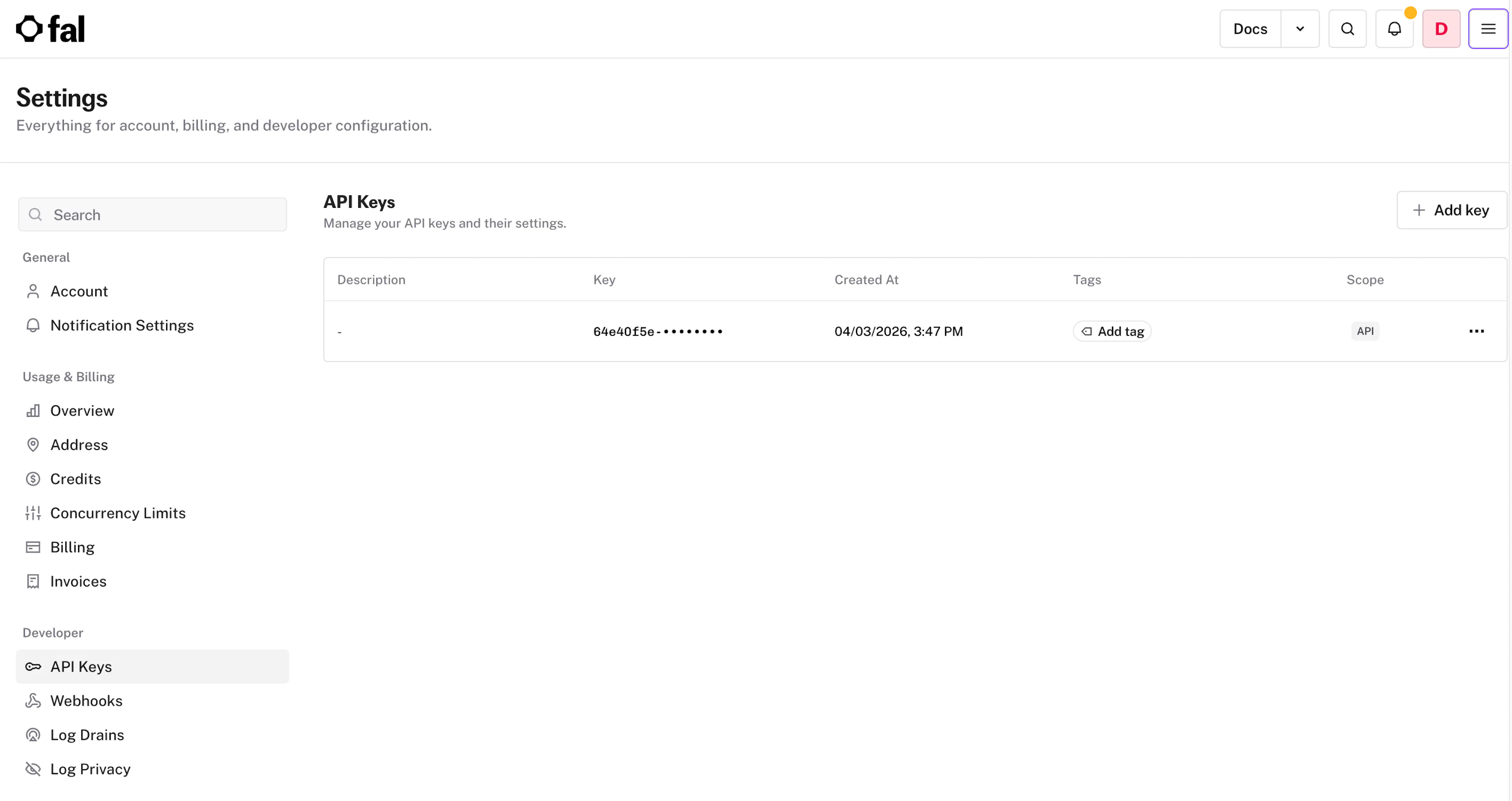
Step 1: Get Your fal.ai API Key
-
Go to fal.ai and sign in (or create an account)
-
Navigate to Settings → API Keys
-
Click Create new key
-
Copy the generated key — you'll paste it into Tala in the next step
Step 2: Add Your Key in Tala
-
In Tala, go to Settings (bottom of the left sidebar)
-
Click Integrations
-
Click Add Integration
-
Select fal.ai from the list
-
Paste your API key and save
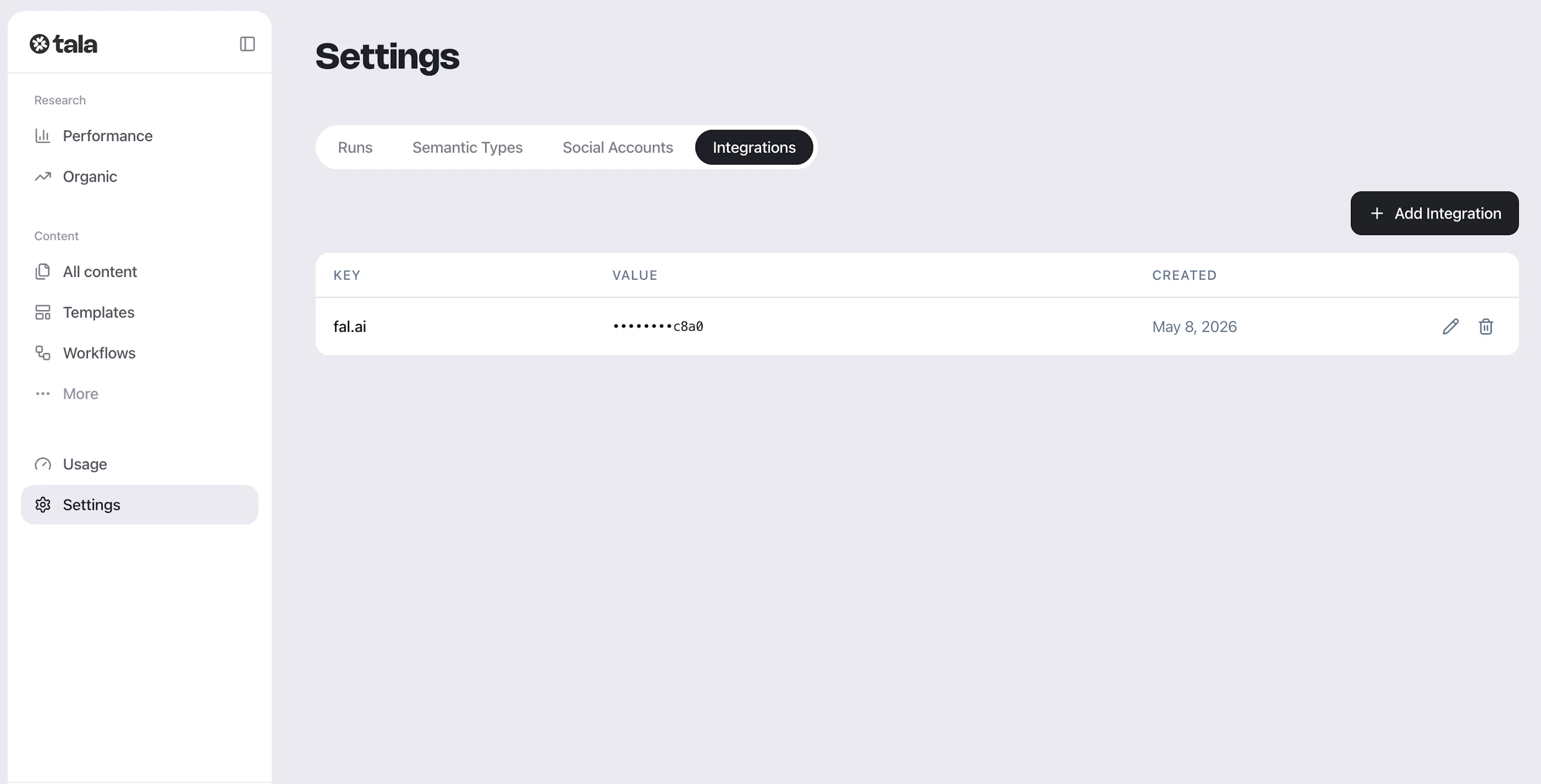
Once saved, all fal.ai nodes in your workflows will use this key automatically.
Checking Your Connection
After adding the key, open any workflow and add a fal.ai node (e.g. Create Image). If the integration is working correctly, the node will be ready to run without any additional setup.
If a node shows a connection error, double-check that:
-
The API key was copied correctly with no extra spaces
-
Your fal.ai account has a valid payment method and sufficient credits
-
The key hasn't been revoked in your fal.ai settings
Managing Costs
All generation costs go through your fal.ai account directly. You can monitor usage and spending in the fal.ai dashboard under Billing.
What's Next?
-
Your First Workflow — start building with fal.ai nodes
-
Best Practices — tips for getting the most out of fal.ai generations in Tala
Last updated today
Built with Documentation.AI